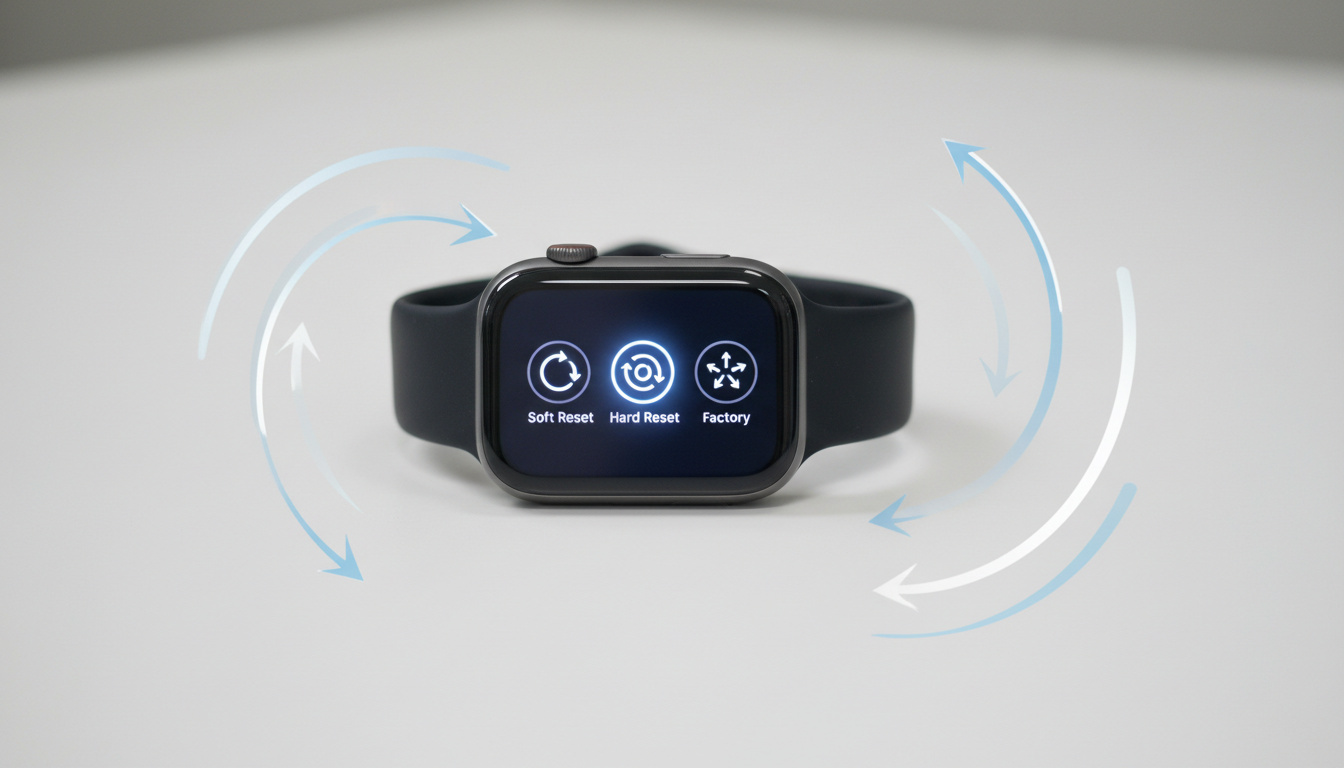
Resetting an Apple Watch becomes necessary when preparing the device for resale, troubleshooting persistent software glitches, or recovering access after forgetting the passcode. The procedure varies significantly depending on whether you possess the paired iPhone, the specific watch model in hand, and whether you seek a simple restart or complete data erasure.
Current guidance from Apple Support confirms that Series 9, Ultra (including Ultra 2), and SE models follow identical protocols for emergency restarts and factory resets, though physical button placement differs slightly on the Ultra. Selecting the appropriate method prevents unintended data loss and ensures Activation Lock status remains manageable during ownership transfers.
How Do I Reset My Apple Watch?
Several critical factors determine which reset method suits your situation. The following insights summarize the essential technical distinctions:
- Force restart requires no external devices or passwords, functioning entirely through physical button combinations.
- Factory reset demands constant power connection via charger to prevent interruption during erasure.
- Activation Lock persists after watch-initiated resets, requiring original Apple ID credentials for reactivation.
- Unpairing via iPhone automatically generates backups before erasing content, preserving health and activity data.
- Series 9, Ultra, and SE share identical protocols for emergency and factory reset procedures.
- Cellular models require separate carrier plan management during the reset process.
- Low battery aborts factory resets, mandating verified charging sources before initiation.
The specific parameters of each approach vary considerably. This table compares the technical requirements and outcomes:
| Reset Method | Data Loss | Requirements | Activation Lock Status | Duration |
|---|---|---|---|---|
| Force Restart | None | Side button + Digital Crown | Unchanged | 10-20 seconds |
| Factory Reset (Watch) | Total erasure | Charger + button sequence | Remains active | 3-5 minutes |
| Erase via Settings | Total erasure | Passcode + optional iPhone | Remains unless unpaired | 3-5 minutes |
| Erase via iPhone App | Total erasure | iPhone + Apple ID password | Removed | 5-10 minutes |
| Auto-Erase (Security) | Total erasure | 10 failed passcode attempts | Remains active | Automatic |
| Cellular Plan Handling | Data preserved on carrier | Carrier contact may be needed | N/A | Variable |
Soft Reset vs Factory Reset: Key Differences
Understanding the distinction between temporary system restarts and permanent data erasure prevents costly mistakes during troubleshooting. Each method addresses specific technical scenarios with different consequences for your data and device security.
What Constitutes a Soft Reset?
A soft reset—technically termed a force restart—reboots the Apple Watch operating system without deleting personal content, settings, or activity history. Press and hold both the side button and Digital Crown simultaneously for at least ten seconds until the Apple logo appears, then release. This procedure resolves temporary freezes, unresponsive apps, and “too many passcode attempts” errors without compromising data integrity according to community documentation.
When Does Factory Reset Become Necessary?
Factory reset becomes unavoidable when selling the device, forgetting the passcode, or preparing for service transfer. This process wipes all media, data, and settings while returning the watch to original factory conditions. Unlike soft resets, factory erasure requires the device remain connected to its charger throughout the process to prevent power interruption during the three-to-five minute deletion cycle based on official documentation.
Resetting directly from the watch hardware maintains Activation Lock protection, requiring the original Apple ID and password to pair the device with any iPhone after erasure.
How to Factory Reset Apple Watch Without iPhone
Situations arise where the paired iPhone becomes unavailable—whether through loss, damage, or separation—yet the watch requires immediate erasure. Apple engineered a hardware-based solution allowing complete reset through button combinations while the device remains secured to its charger.
Preparing the Device for Erasure
Position the Apple Watch on its magnetic charger and verify the power source functions correctly. Low battery levels abort the reset process mid-cycle, potentially corrupting system files. This method applies universally to Series 9, Ultra (including Ultra 2), and SE models, with only minor button placement variations on the Ultra where the side button sits lower on the chassis.
Executing the Button Sequence
Press and hold the side button until the Power Off slider appears on screen. Continue holding the Digital Crown (or rotating bezel on Ultra models) until the “Erase all content and settings” prompt displays. Tap Reset, then confirm the selection. The system requires approximately three to five minutes to complete the erasure, after which the watch restarts displaying the initial setup screen as demonstrated in visual documentation.
Users exploring wellness technology might also find our guide on How to Get Rid of Cellulite relevant for complementary health tracking strategies.
Troubleshooting: Apple Watch Won’t Reset
Reset procedures occasionally fail due to power constraints, software conflicts, or procedural errors. Systematic troubleshooting isolates whether the issue stems from hardware limitations or user sequence mistakes.
Resolving Passcode Lockouts
Devices displaying “too many passcode attempts” require force restart before factory reset becomes accessible. Hold both buttons for ten to twenty seconds until the Apple logo appears, release, then immediately hold the side button alone to trigger the reset prompt. If the Erase Data security feature remains enabled in settings, the watch automatically initiates factory reset after ten consecutive failed passcode entries per technical specifications.
Power and Charging Issues
Intermittent power supplies frequently interrupt reset processes. Ensure the charging cable connects to a reliable power source, not passive USB ports on computers. Cellular models present additional complexity—users must choose whether to preserve or remove the cellular plan during iPhone-based erasure, potentially requiring direct carrier contact to cancel recurring service charges according to support guidelines.
Always verify the charging indicator appears before initiating reset sequences. A depleted battery often explains aborted factory resets.
Factory erasure permanently deletes all content without recovery options unless the paired iPhone created an automatic backup prior to unpairing.
Travelers managing device logistics may appreciate our analysis of How Many Avios Points for a Flight when planning international trips with wearable technology.
What Is the Step-by-Step Reset Sequence?
Executing a factory reset without iPhone access follows a precise chronological order. Deviating from this sequence often results in failed attempts or partial erasure.
- : Connect the Apple Watch to its charger and verify the power indicator activates.
- : Press and hold the side button until the Power Off slider appears on the display.
- : Press and hold the Digital Crown until the “Erase all content and settings” interface appears.
- : Tap Reset on the prompt, then confirm the erasure command when secondary verification appears.
- : Maintain physical connection to the charger for three to five minutes while the system deletes content and restarts.
- : Complete initial setup language selection, then pair with the new iPhone or restore from backup when prompted based on setup documentation.
What Is Established vs. Uncertain About Apple Watch Resets?
Established Facts
- Official Apple reset methods function identically across Series 9, Ultra, and SE models.
- Activation Lock remains active after direct watch resets without iPhone unpairing.
- Automatic backups generate exclusively when unpairing through the iPhone Watch app.
- Force restart procedures resolve temporary software freezes without data loss.
Uncertain Information
- Third-party applications may interfere with reset processes—Apple recommends using native methods only.
- Specific timing variations based on storage capacity and data density remain unverified.
- Carrier-specific procedures for cellular plan removal vary by region and service provider.
Why Do Users Reset Their Apple Watch?
Device resets typically precede ownership transfers, ensuring personal health metrics, financial data, and private communications remain inaccessible to subsequent users. The process proves essential when preparing the watch for resale, gifting, or service replacement, functioning as the digital equivalent of shredding personal documents.
Technical troubleshooting drives additional reset scenarios. Persistent software glitches, unusual battery drain patterns, or connectivity failures often resolve following complete system erasure and fresh installation. Security concerns—particularly forgotten passcodes where the ten-attempt threshold approaches—necessitate immediate factory reset to prevent permanent device lockout while preserving the hardware’s utility through Activation Lock protections.
What Do Official Sources Confirm About Reset Procedures?
Apple Support documentation provides the authoritative baseline for all reset procedures, emphasizing hardware-specific button combinations and security protocols.
If you forgot your passcode, you need to erase your Apple Watch. Place your watch on its charger, then press and hold the side button until you see the Power Off slider. Press and hold the Digital Crown, then tap Reset.
— Apple Support, If you forget your passcode
After you erase your Apple Watch, you need to enter your Apple ID password again to reactivate and use the watch.
— Apple Support, Activation Lock documentation
How Should You Approach Resetting Your Apple Watch?
Select force restart for temporary glitches, preserving all data while refreshing the system. Choose factory reset only when selling, troubleshooting persistent errors, or bypassing forgotten passcodes, always maintaining charger connection throughout the process. Remember that iPhone-based unpairing remains the only method removing Activation Lock while creating automatic backups, whereas hardware resets preserve security protections requiring original Apple ID verification for reactivation.
Frequently Asked Questions
Does resetting Apple Watch remove Activation Lock?
No. Resetting directly from the watch maintains Activation Lock, requiring the original Apple ID and password to reactivate. Only unpairing via the iPhone Watch app removes this protection while erasing content.
Can I reset Apple Watch Series 9?
Yes. Series 9, Ultra (including Ultra 2), and SE models share identical reset protocols. All support force restart and factory reset via button combinations or the paired iPhone.
How do I backup before resetting?
Backups occur automatically when unpairing via the iPhone Watch app. Without iPhone, backups must exist from prior syncs; no manual backup option exists directly on the watch.
How do I reset Apple Watch from iPhone?
Open the Apple Watch app, navigate to My Watch > General > Reset > Erase Apple Watch Content and Settings. Enter your Apple ID password when prompted. This removes Activation Lock and creates a backup.
Will resetting Apple Watch delete everything?
Factory reset deletes all media, data, settings, and apps, returning the device to original factory condition. Force restart preserves all content while rebooting the system.
How to reset Apple Watch passcode?
You cannot recover a forgotten passcode. You must erase the watch using the hardware button sequence or iPhone app, then restore from backup during reactivation.
How long does it take to reset Apple Watch?
Factory reset requires three to five minutes for content erasure. Force restart completes in ten to twenty seconds. Setup and pairing add additional time post-reset.

Sophie Kendall is Tools & Digital Culture Correspondent at WordPatch.co.uk, covering writing tools, productivity software, AI writing platforms, digital publishing and online communication trends.